

Home
cBioPortal Acceptation
-
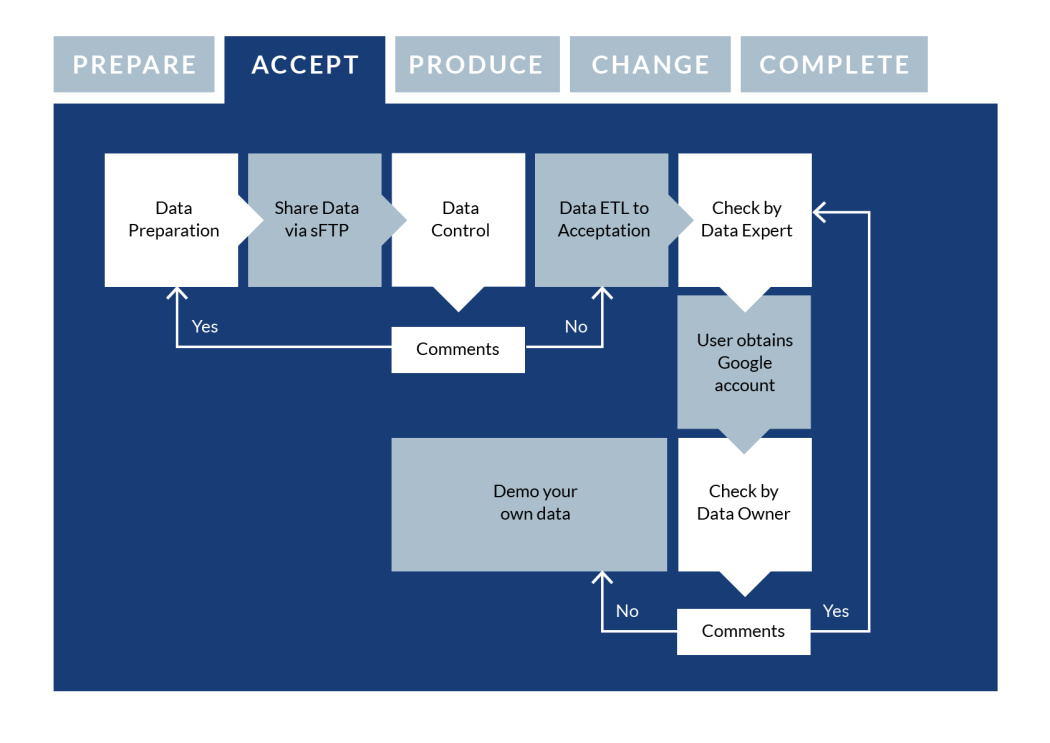
Data preparation
During the preparation phase, you have been in contact with the cBioPortal data team to get a first impression of cBioPortal and the data you would like to store (see Study intake). Here you can find information on how you should prepare your data for cBioPortal.
Please read the information provided in the data requirements document. Click on the data types that are applicable to you (e.g. segmented data or methylation data). Prepare a tsv file according to the instructions from this link.
If you want to see examples, you can find demonstration studies by visiting this website. The data preparation files for these studies can be found here.
As an example, in the MSK-IMPACCT study, clinical, CNA and mutation data has been uploaded for 10.000 patients. Here, you can see how the data files were prepared for the upload, based on the requirements set by the data requirements document. -
Data control
After the data team receives a notification that data has been delivered to the safe environment, they will make an internal working directory for your study on the secure ETL server (Extract, Transform and Load). In this working directory, initial data checks are performed to make sure the data is ready to be loaded to cBioPortal.
The data checks include investigating whether the data has been delivered correctly according to the data requirements document (see ‘Data Preparation’).
-
Comments
In case errors are found in the data, feedback will be provided by the data team. Small issues which do not require significant work will be taken care of by the data team. Errors such as missing required fields are errors that the data team often cannot solve by themselves. In these cases, you – the data owner – will have to correct the data or the files with the feedback provided by the data team. The feedback will be accurate enough for you to spot and fix the problem.
If the data is in good shape and the data forms seem complete, then the data team will send out an update that the data was received in good order, and that the next steps can now be taken.
-
Data ETL to acceptation
The data provided has been delivered correctly according to the data requirements document (see ‘Data Preparation’). Next, the data will be processed by the data team on the ETL server (Extract, Transform, Load), after which it will be uploaded to the cBioPortal acceptation server. This is a stable and secure cBioPortal environment with the purpose of modelling and iterating your data.
-
Check by data expert
After the data has been loaded to the cBioPortal acceptation server, the initial load result is checked by the data loader. In case anything went wrong with the upload, it can be corrected. If everything went correctly, the data owner will be notified.
-
User obtains Google account
In order to login in to cBioPortal, the user is required to have a Google account. In case the user doesn’t have a Google account yet, they can create one at accounts.google.com/signup.
After the data owner has received a notification that the study is ready in acceptation, access can be granted to other users. Access to the study on acceptation is arranged via the Health-RI Self-Service Portal. A request for access can be done by selecting ‘Services and Request Forms’, scrolling down to 'cBioPortal', and then clicking on ‘cBioPortal access to existing Study’. Fill out the form, make sure you select the correct study name, the correct environment (acceptation) and the correct role.
-
Check by data owner
After the data has been loaded and checked, the data owner is given access to the study in the acceptation environment for an initial inspection of their own data in cBioPortal. Any comments or adjustments that fit within the cBioPortal model will be picked up by the data team to improve the representation of your data in cBioPortal.
-
Comments
Any feedback on the study as it is currently displayed in cBioPortal? No problem; the data team is glad to help you incorporate the feedback into the data loading process. Note that extensive changes to the data mapping or to the source data might also require you as data owner to adjust the provided data.